How to migrate your tracking history from TV Time to Episora-WatchMate
Are you looking for a reliable TV Time alternative or a safer way to keep track of your movies and TV shows without depending on third-party cloud servers? You don't have to start from scratch and lose years of curated data tracking.
Thanks to the native migration feature embedded inside Episora-WatchMate, you can transfer your entire history seamlessly. Your personal data will be kept locally on your Android device, safe from any future service shutdowns.
The 4 steps to complete your migration:
Important notice: TV Time permanently shut down its servers on July 15, 2026, removing all data that was not exported. Unfortunately, it is no longer possible to download your history. If you previously requested a backup through GDPR, you can import that file.
1. Export data from TV Time
The first step is to obtain the file containing your history. You can request it immediately by visiting the official TV Time export page: gdpr.tvtime.com/gdpr/self-service. Log in with your account and request the backup (GDPR Data Export). You will receive a download link for your archive, a compressed file containing your data in .json or .csv format.
💡 Practical tip: It is best to request the export directly from your smartphone so you can download the file straight to your phone storage. If you do it from a PC, you will need to send or copy the file to your phone afterwards (for example by email, WhatsApp, or Google Drive).
2. Prepare Episora-WatchMate
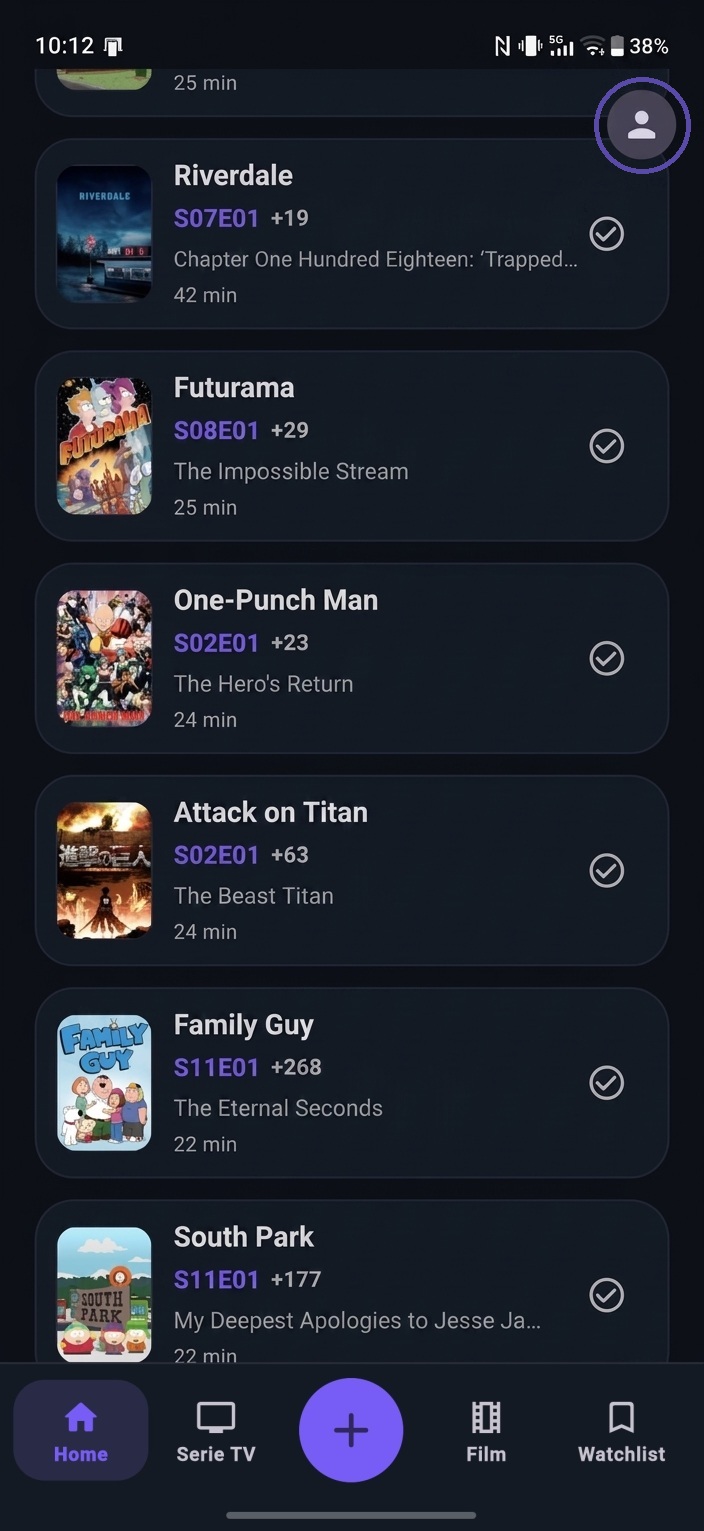
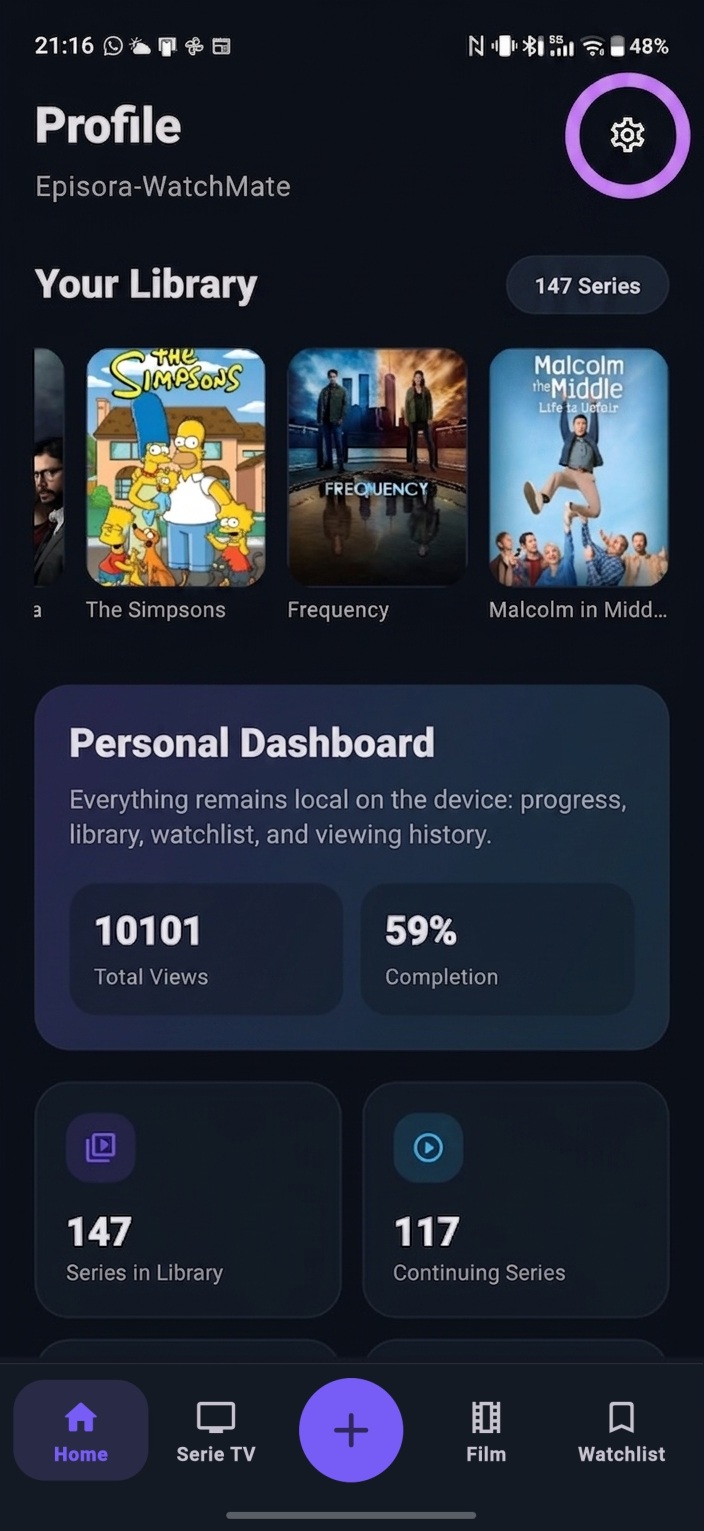
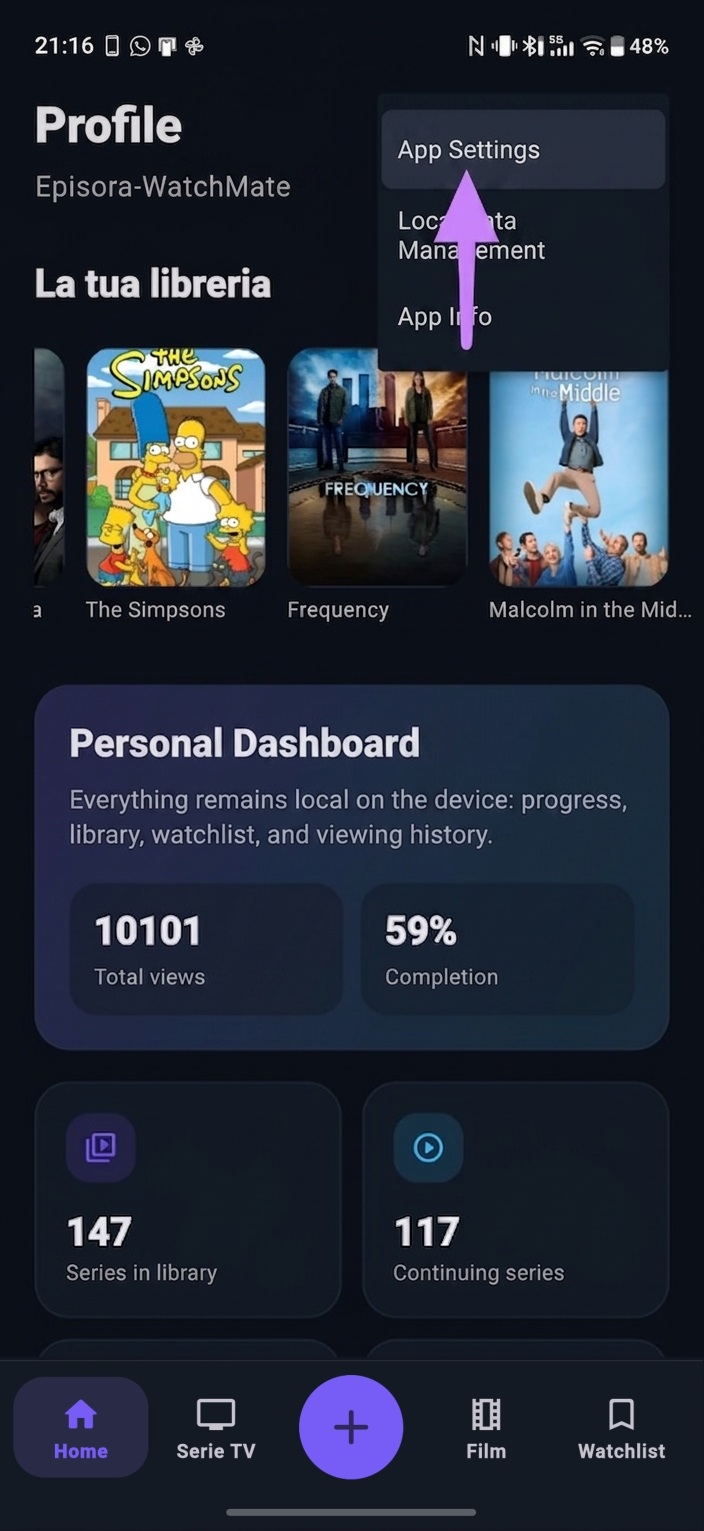
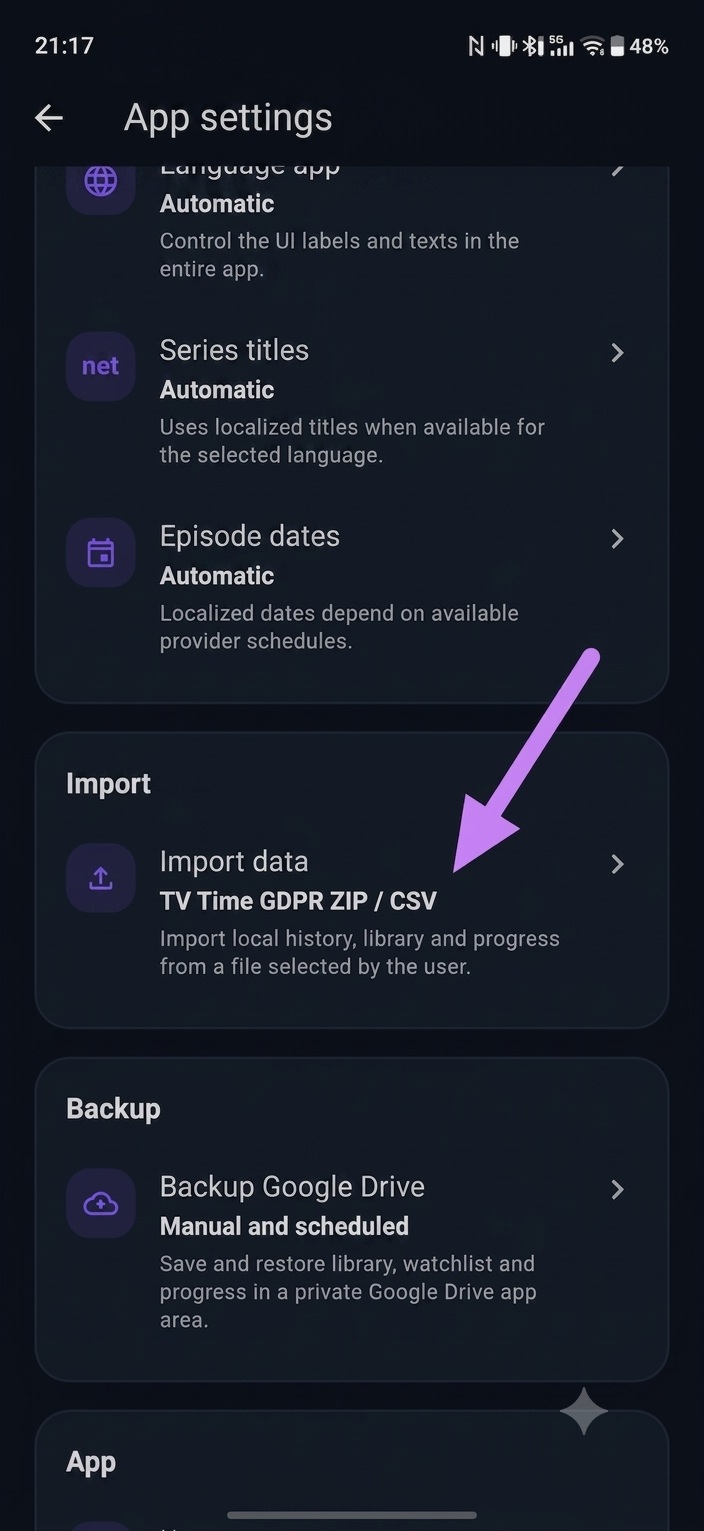
If you have not done so already, get the app on your Android device (Available on Google Play). Open the app on your phone, tap your Profile icon in the bottom-right corner, then tap the gear icon in the top-right to open the options, select App Settings, and finally tap the "Import tv-time gdpr data" button.
3. Upload and import the file
Once you are in the import section of the app, the process follows these key steps:
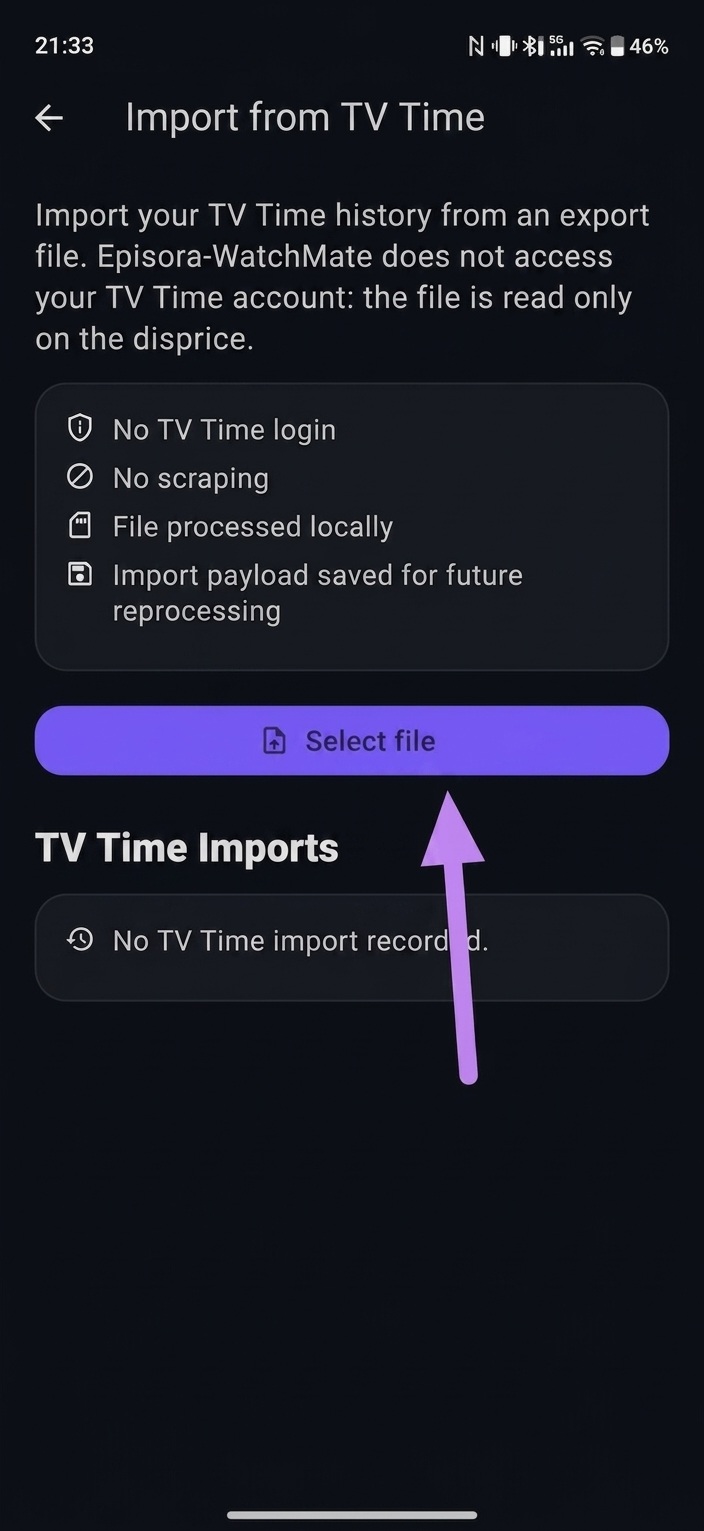
- Select the file: Tap the initial button to start searching for the file on your device.
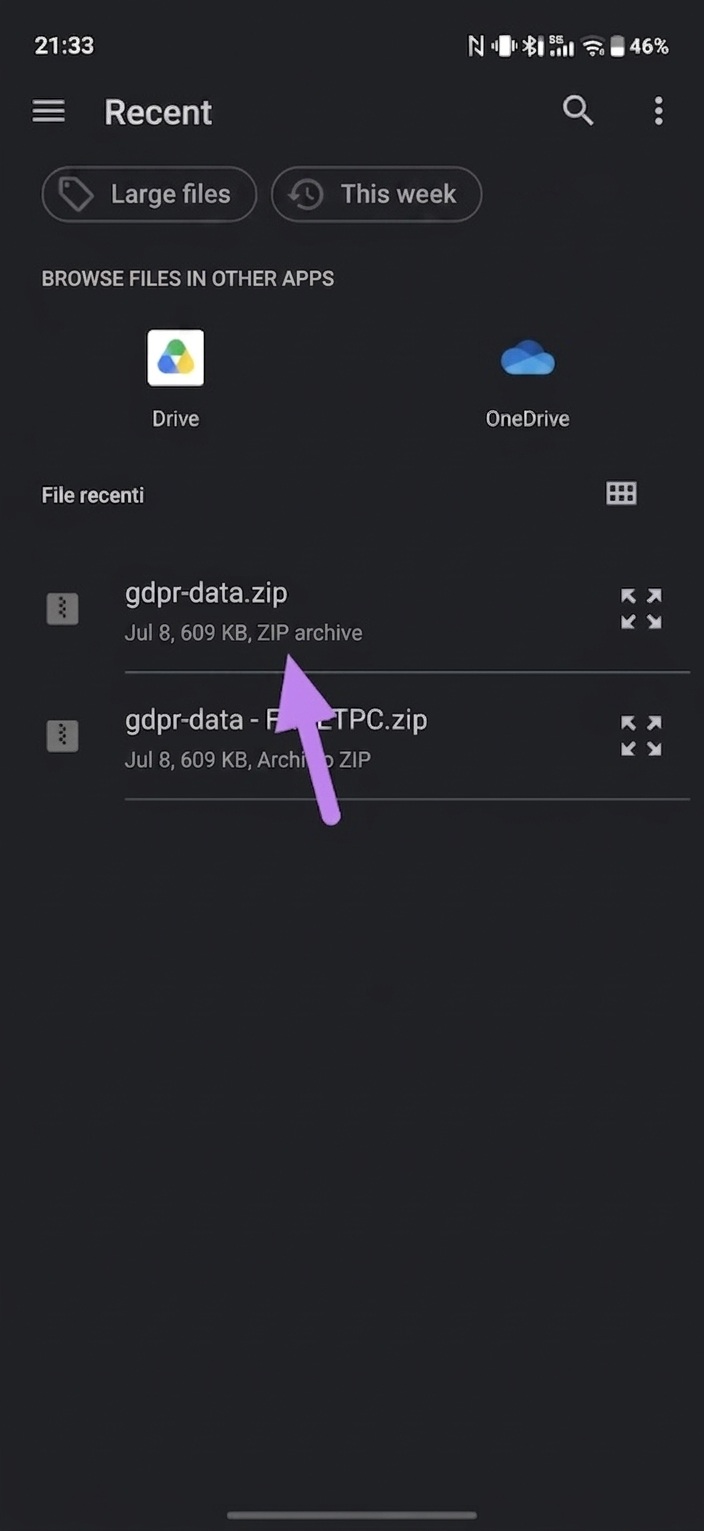
- Choose the file from your phone: Find and select the ZIP or CSV file you previously downloaded from TV Time.
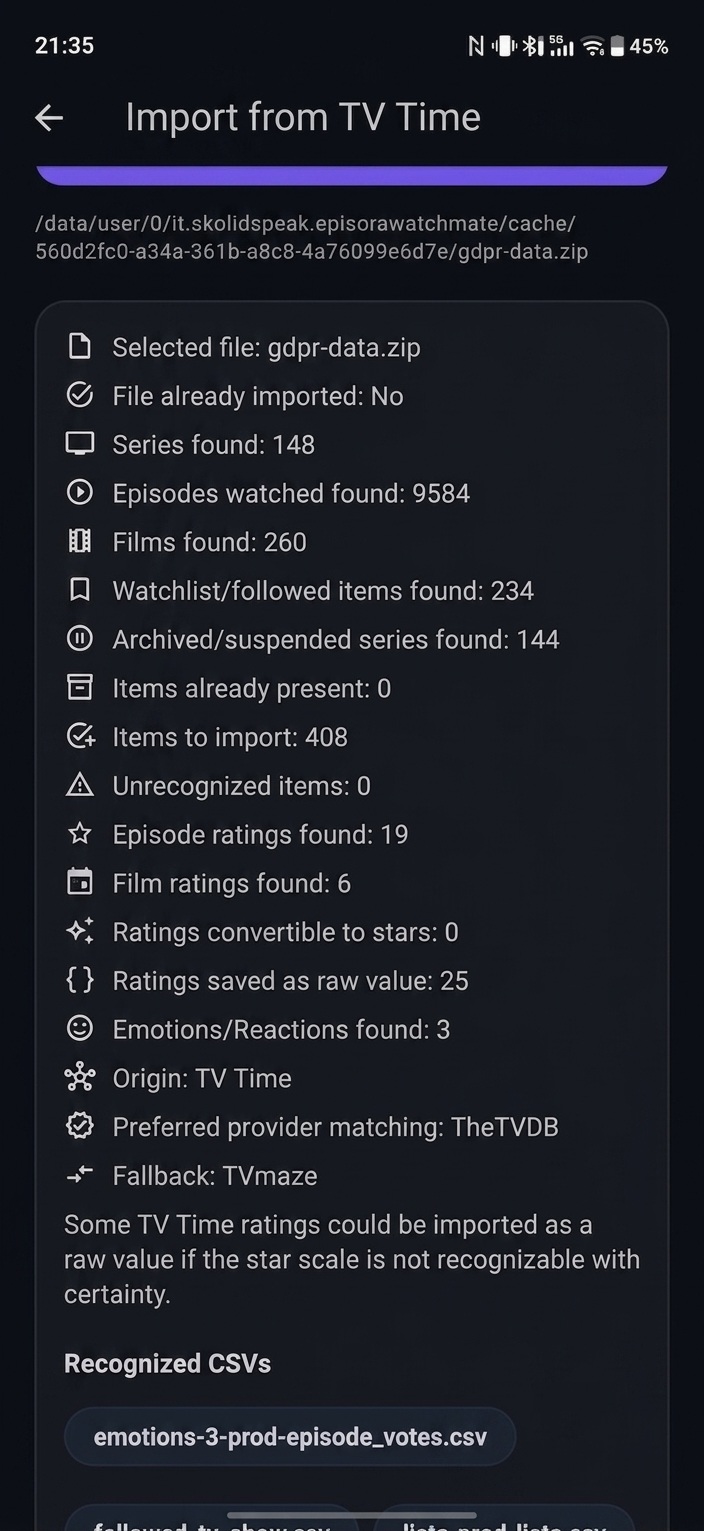
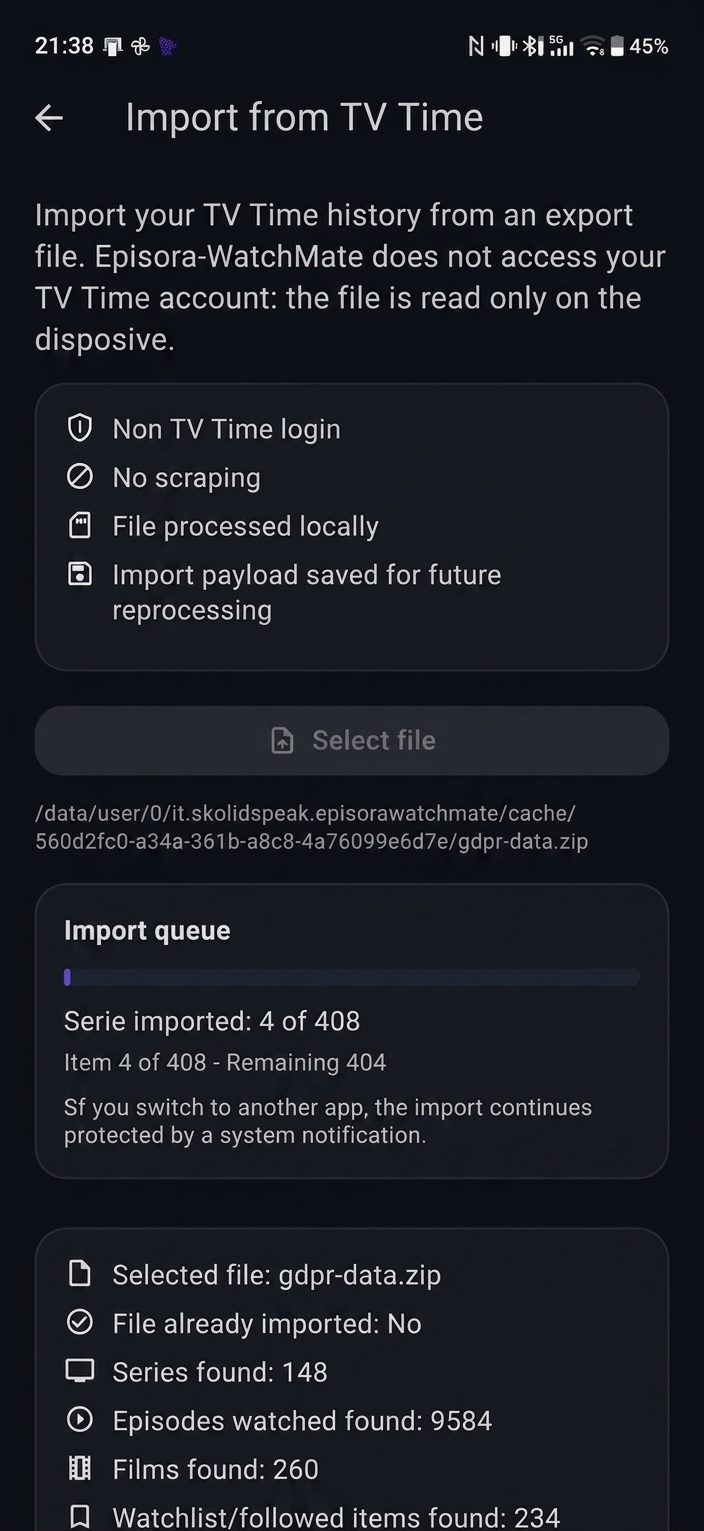
- Review the summary: The app will analyze the file and show you a preview of the detected content (how many TV shows, movies, and episodes are ready to import).
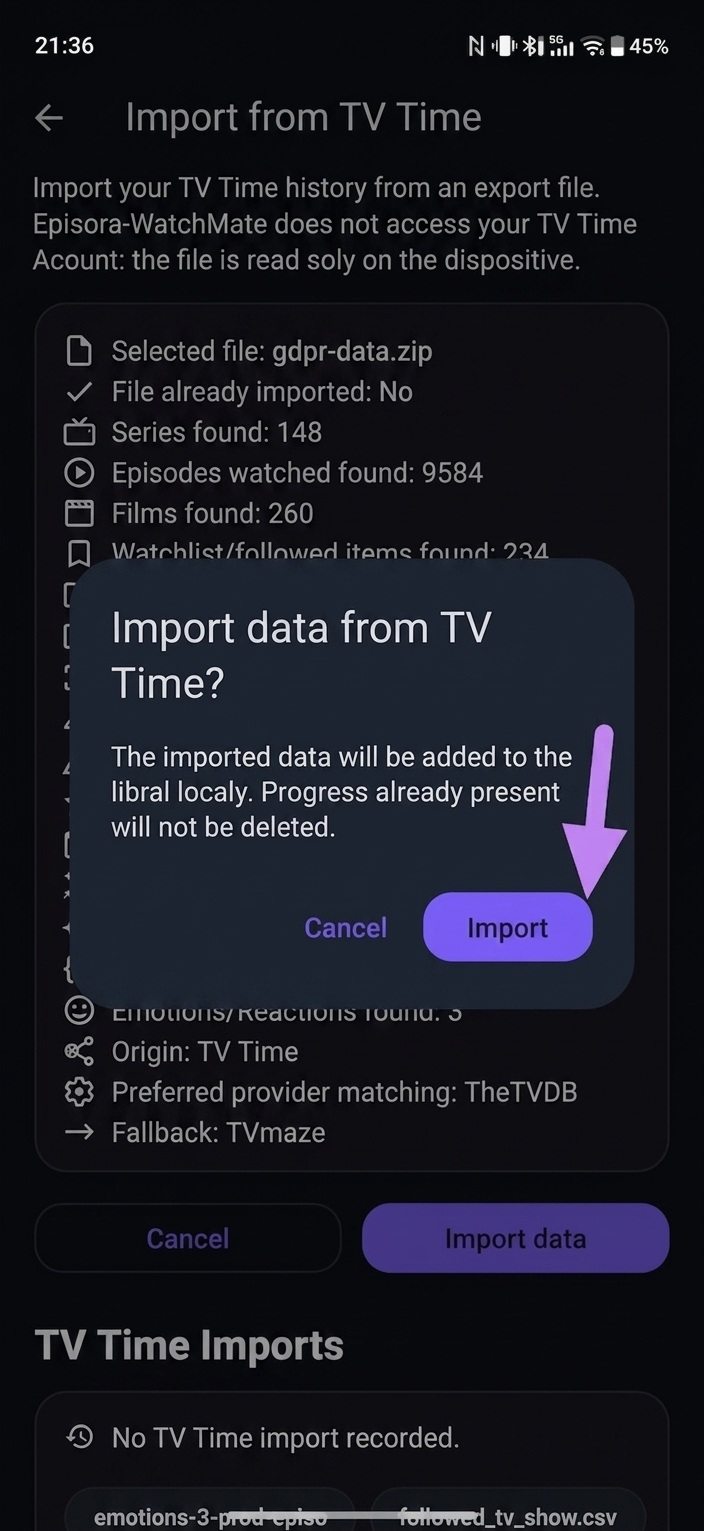
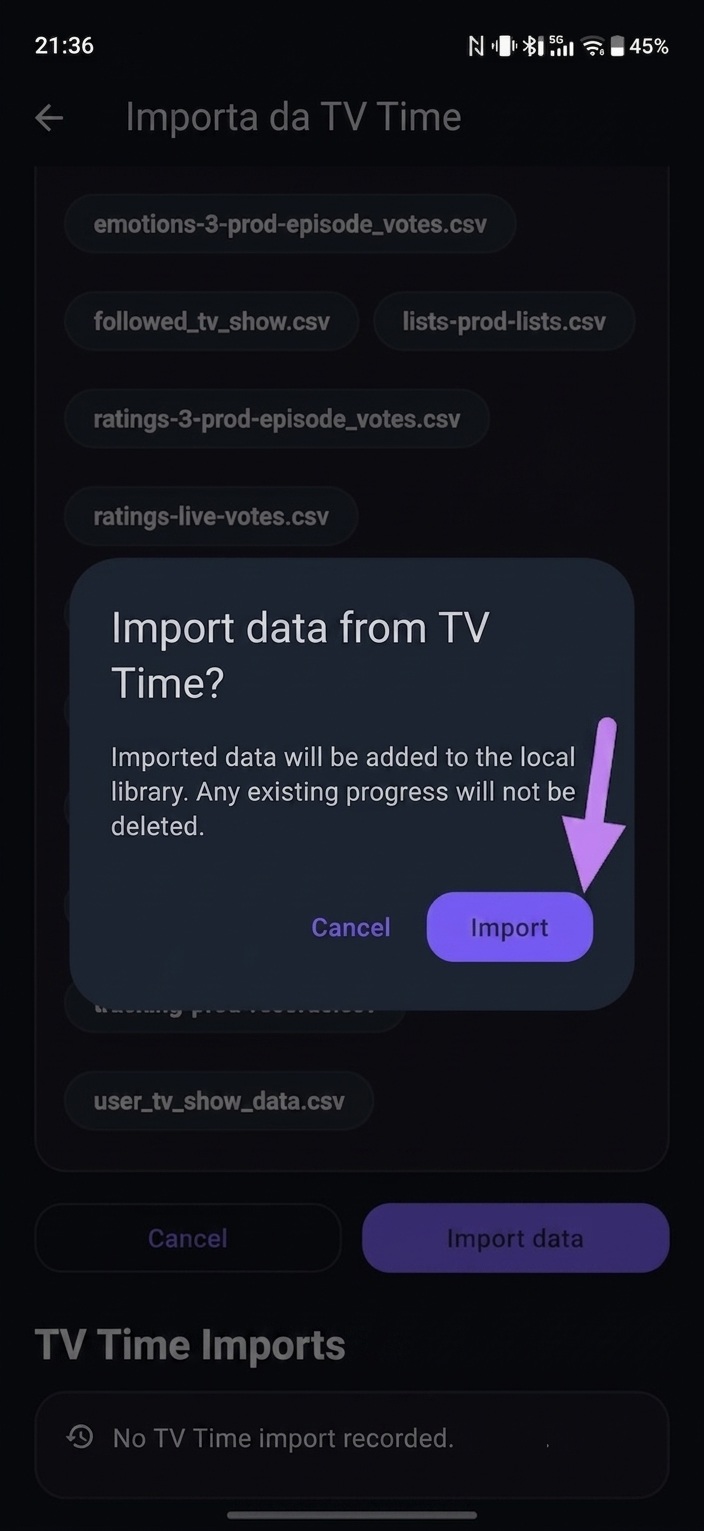
- Start the import: Tap the button to confirm that the data shown in the summary is correct.
- Final confirmation: Confirm the action in the security popup that appears on screen.
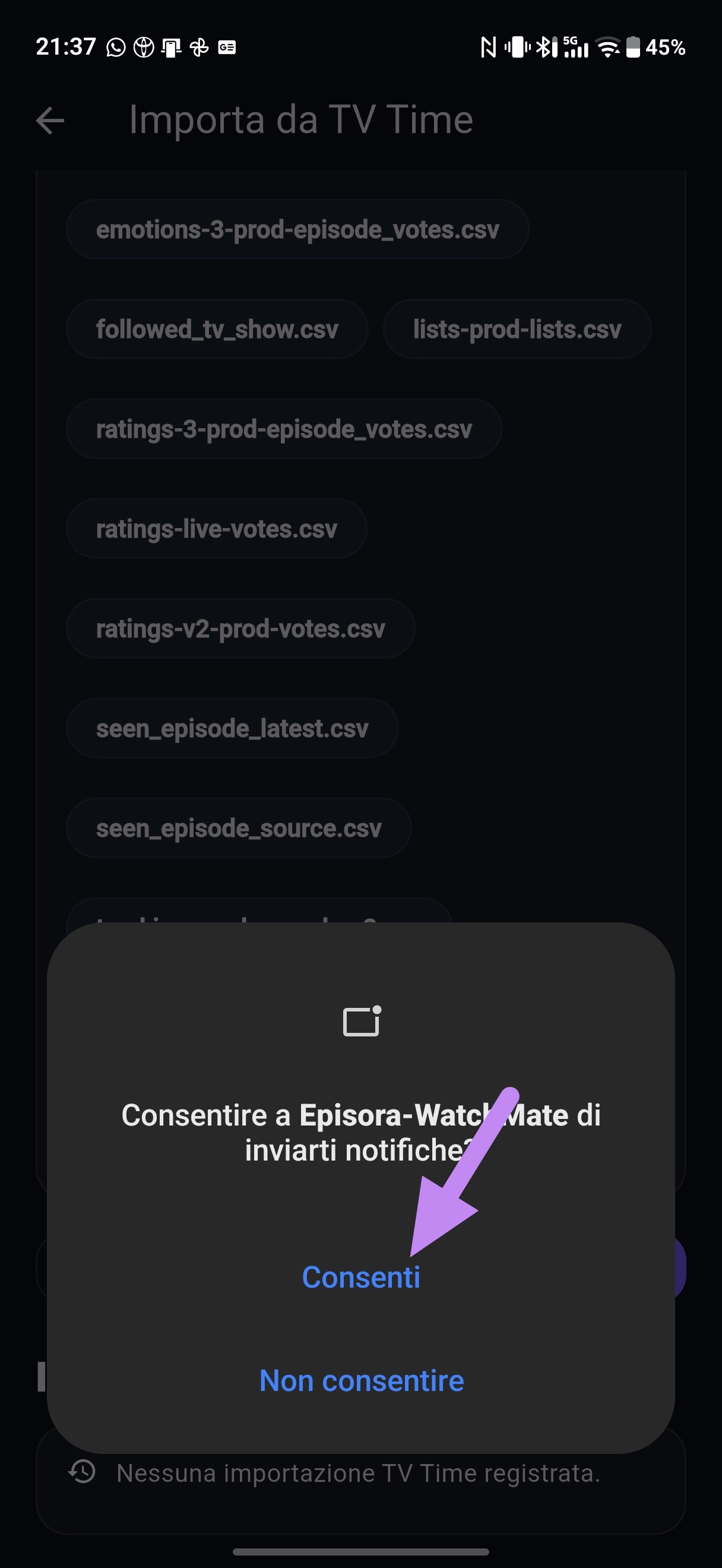
- Allow notifications: Accept the app's request to send you notifications. This is useful so you get a message as soon as the import, which may take a few minutes, is completed.
- Wait for completion: The import starts and runs in the background.
4. Verify the imported data with the summary
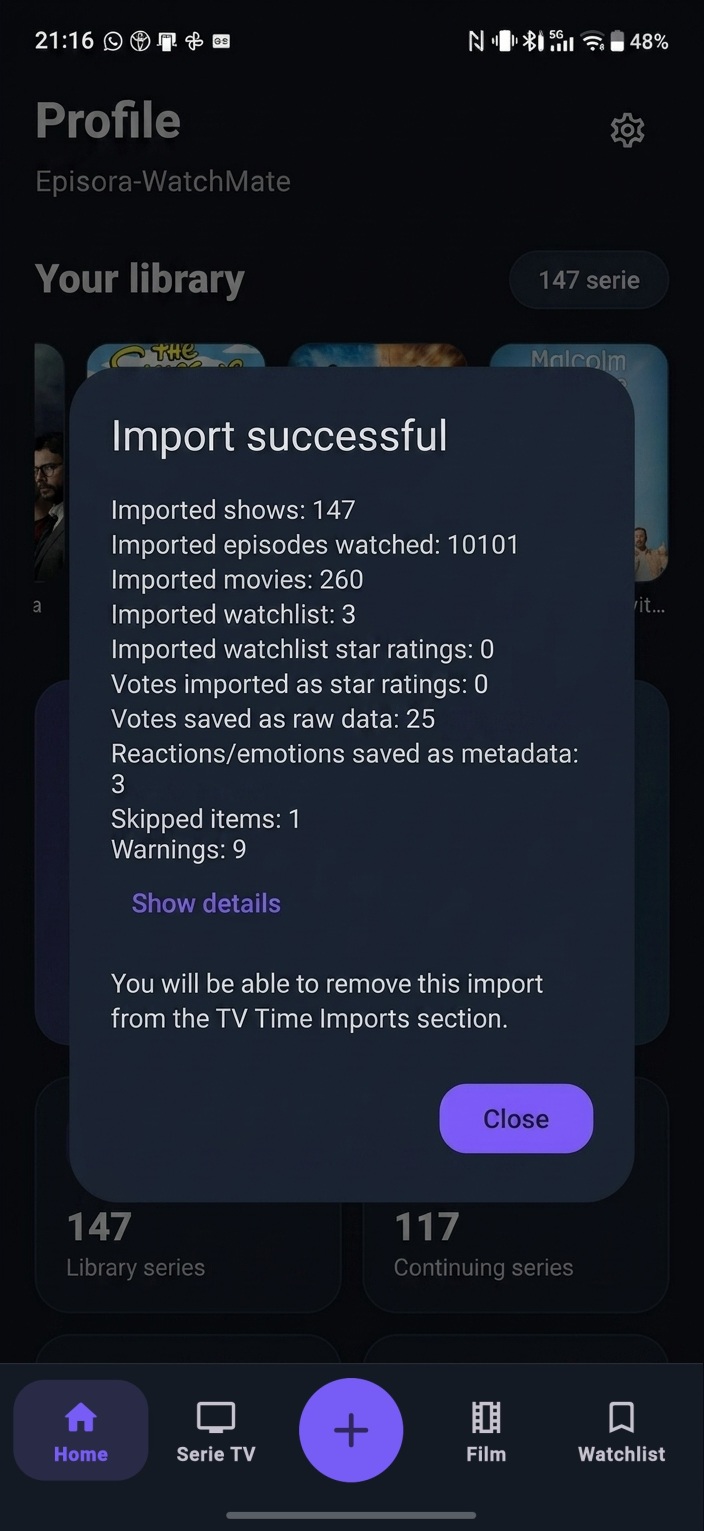
Once processing is complete, the app will show a detailed summary screen. Here you can verify the total number of imported TV shows, recognized movies, and episodes marked as watched. Check that the numbers match your expectations; you can manually fix any episodes or movies that were not recognized.
Need help or troubleshooting?
Make sure the extracted file is not damaged and has not been manually modified. Once the 4-step import has completed successfully, we strongly recommend accessing the app's internal backup section and enabling encrypted Google Drive backup: this way your new local library will stay safe from loss or phone failures.
You can use the support and contact section if you need a hand—we will do our best.
Ready to take back control of your watch list?
Download Episora-WatchMate, import your legacy file in seconds, and secure your media logs forever.
 Available on Google Play